Showing posts with label andover help desk. Show all posts

Wednesday, March 19, 2014

Peter Banta Blog Post for March

This week has been the beginning of phase 2 of my final project. This means that the entire front of my spaceship has been fully modeled down to every last detail. The overall cockpit came out very nice, and the texturing i made for the glass encompassing the cockpit looks very good. The beginnings of phase 2 have been very promising, and the body shape for the middle section of the ship is looking very nice. I have enjoyed the process as I have had a lot of success with the whole modeling process. The whole class experience has been very enjoyable also.
phase 2 scene 1.png


The project is going well, and I like the way the small details of the cannons are coming out. Phase 3 is going to be very detailed, while phase 2 is more about getting a rough shape down while doing some of the details in the back. I really like how it is going so far and I think I am slightly ahead of schedule as I finished the main body shape in half a class instead of the whole class like I thought it would. Overall the help desk is clearly making me a better modeler in general.

Chrispin Wendell Blog Entry For March

For the past month, I have been at the help desk to study Java programming. The online sites 
don’t help much in helping to understand how the language fits together, but there are some 
books that are more helpful. In phase 2, I hope to start writing simple programs such as the 
traditional “Hello World” program I recently created. I think that once I know how the language 
fits together, I will learn quickly, because it happens to be closely related to another language I know. 

I am learning the language because it is one of the most popular languages in the world, and 
because that language is necessary to make applications for Android. Once I have a better 
understanding of how to program in Java, I will probably make an app that allows students to 
view homework from their phone, since no one can find it on Aspen.

Tuesday, March 11, 2014

Katherine-Blog Post for the Month of March-Andover Innovation Lab/Help Desk

3.6.14.website skeleton.png
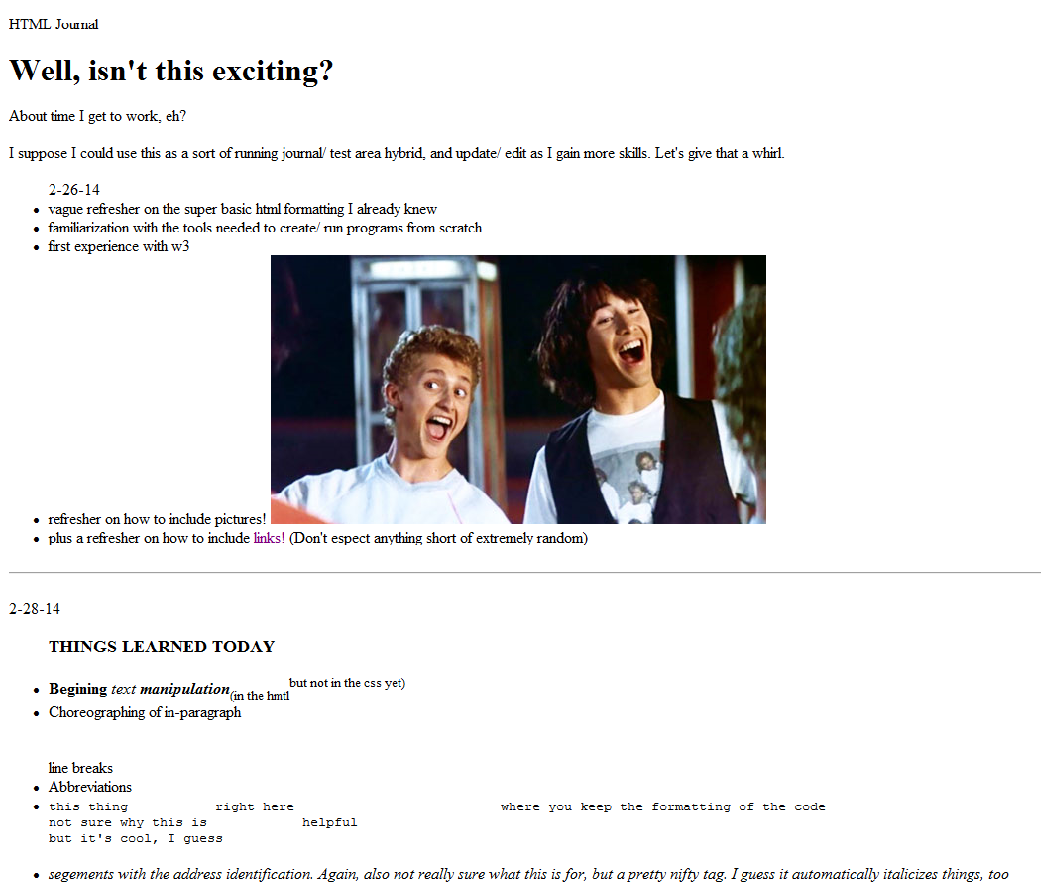
Since my last post, things have been picking up speed. I’ve moved on from my research project and have started to learn HTML online through w3 schools. It’s been good, though I wish I had more time to work each day-- I find that when I use w3 schools within a mere constricting 82 minutes, it’s tricky to strike the right balance between reading new material tutorials and actually practicing the skills I’ve learned. To counter that, I’ve decided to try out the idea of the “HTML Journal”. Theoretically, with the HTML Journal I can both take notes on what I learned that day AND attempt to execute the correct use of those skills, all at the same time! That way, I have a continuous log of concepts learned, with working code (and the accompanying physical results!) to serve as a reference for my work at a later date. Plus, by putting my work each day on a Google Doc, I’m able to access and continue my work at home (on the rare occasion that I’m not drowning in homework.) Although, I will admit that documenting the process of learning HTML from scratch is embarrassingly simplistic  at first. As you can see from the included picture of the fruition of my HTML efforts thus far, I am still far from making an aesthetically pleasing product.

Going forward, I’m looking forward to learning the CSS to bulk up my HTML. I’d say I’m downright anxious to get to CSS, actually, because what I have right now just looks silly. Hopefully, by the time I write my next blog entry, I’ll have learned to integrate CSS well enough to make the skeleton I have now into something that actually looks plausibly legitimate website. I guess that if I start making my website look more professional, I should probably step up the quality of my content as well-- but I’m not ready to give up Bill and Ted or my plethora of goofy links, so I’ll worry about that later. I still have plenty of things to learn before I’ll be nearly close enough to that level of proficiency
.


Monday, March 10, 2014

Nick Blog Post for the Month of March

For my project, I decided to code my own game. I looked into different coding languages, such as Hammer and Python, but decided to use Java, because I already have a small background using it. I learned about different classes and variables, as well as global variables. I also learned about different websites I could use to market my game if I was satisfied with the results, and found an online compiler called Browxy, which I can use to code with.

I created a flowchart for how my game would play, and then began coding. It took approximately two minutes to wonder just what the hell I had gotten myself into. I started by planning out a rough sketch of how the player would progress through the code, and began programming the different classes. I then wrote out how the Main class would work, and started to code it. I am currently almost done with the basic skeleton of my code, and plan to start having people test when I finish.

Thursday, March 6, 2014

From Support Squad To Innovators, Andover Weekly Article / Zachary Griffin

   Before the big February vacation, we at the Andover Innovation Lab had the honor of being interviewed by Dustin Luca at the Andover Townsmen regarding our class and where it fits into Andover High School. This was a great opportunity for the students and Mr. Downs and I to show off the potential a tech-based Help Desk class can have for its environment, and also a chance for the classes students to expose their amazing projects to the town of Andover.

    The interview was done at the end of the day during a fourth block, and we had a total of six students that are either a part of the Help Desk currently or where involved with us during the prior semester. Among those students were Eli Gukovsky and Viabhav Patel, who were both previous students, and current students such as Crispin Dowell, Peter Banta, Parth Valecha, and John Makiej. Each student was given the opportunity to present their projects to Dustin Luca along with their opinions on the Help Desk and its usage at Andover High among the faculty.

    The article was published on the Andover Weekly February 27, and was met with good reception by both the Andover community and the high schools faculty. As we continue to push technical support at the Innovation Lab, we will continue to give students opportunity's to learn more about their field and where they want to go after High School. The Help Desk exists to serve both the community and its students, and with the tech-savvy Mr. Downs and his knowledge on the direction technology is going, the Help Desk couldn't be in better hands.

If you want to see the article, you can view it on the link below:
http://www.andovertownsman.com/education/x1196458307/From-support-squad-to-innovators

Tuesday, March 4, 2014

Instructional Technology & Andover Innovation Lab Updates February 24-28,2014 Andover High School

The state of teachers engaging in new projects with technology at Andover High School!

On Monday, the help desk received some older laptops to assist with projects for blogs, web development and using Google tools. Myself and the Lab Coordinator Zachary Griffin worked with Social Studies staff during their department meeting time to add links of resources, images and presentations which were organized according to different courses. The staff did a great job at learning how the technology worked and could immediately benefit from sharing between course and curriculums.Teachers have been very open about making regular appointments with me to learn more about Google Drive, Forms and Google Groups. 


The teachers are fine tuning their knowledge with Wikispaces and using hardware such as scanners and their interactive boards. I have spent the past week working with 5 teachers beyond the Social Studies department with improving their skill base with Wikispaces to enhance in their classroom web space.


On Tuesday I met with Dr. Allen from the World Languages department and we circulated ideas surrounding the creation of a website for the World language department at the high school. The page would focus on sharing the focus of the program at the high school and also spotlighting its great faculty. Myself and the help desk will provide the layout and we will work to get them started.

Paula Westmacott a Special Education teacher at the high school dove into learning more about using her interactive board when she with me on Wednesday. I was able to walk her through step by step related to the Epsom Interactive hardware, software and pens. She will be mainly using a series of websites and documents with the interactive board. She is excited to integrate this knowledge into her SMART goals as an educator and use it in a variety of collaborative classroom activities.Additionally, I was able to assist Physical Education teacher Carol Martini with the creation of a portion of her slide show for her “Warrior Way” program she will be presenting to students over the coming weeks. She made a great slideshow using her iPhoto tools and I worked with he in iMovie to add 2 different songs over the photos. She then embedded this video into her presentation.

Health teacher Holly Breen is using the sharing options within Google Drive toenable students to share work more efficiently and return feedback to studentsfaster. She has also adopted the Chrome Browser for the use of Youtube resources in the classroom as well.

 On Thursday I was able to attend a training based in the development of an advisory program at Andover High School. We read a variety of interesting and intellectually stimulating articles surrounding the development of students emotional and intellectual well being. We were also able to thoughtfully consider what a program the High School would look like and who it may serve. I look forward to being part of this process moving forward. 

Also on Thursday, a great article featuring the Andover Innovation Lab & Help Desk was published in the Andover Townsman. Dustin Luca included great photos from students projects at the help desk and highlighted some of the benefits we bring to the school.

Here is the link:http://www.andovertownsman.com/education/x1196458307/From-support-squad-to-innovators

To close the week I finished the final draft for a potential grant from the AEA for some Google Chromebooks for the Innovation Lab/Help Desk. Here is a link describing more about what this web based laptop has to offer students. We hope to integrate tools like these at the help desk moving forward and provide a model of success related to technology integration.

Friday, February 28, 2014

A Simple Wikispaces Cheat Sheet / Zachary Griffin

Basic Wiki Cheat Sheet

Welcome to the Basics of a Wiki! Here we will guide you through several easy steps on how to use Wikispaces.

Home Page Edit Tool

Below is a picture of five edit features you can use for your convenience. If you want to create a new page, for example, all you have to do is click on the Page icon, enter a name, and your page will be created! Below is a detailed list of each icon and what their uses are for a Wiki page.

Member/Avatar: This displays your user profile photo. This allows the viewers to know who created or edited content on a particular page.
Create New Page: Add a new page to your Wiki. After you enter the name of your page, it will show up on your navigation menu.
Add Files To Storage: Allows you to add files to your Wikispaces storage.
Create Discussions On Homepage: Creates new posts on a page for users to hold on a discussion.
Create Project: Develop a new project for your Wiki that will also show up under your Events page.
Create Events: Create an event that will be displayed on your Wiki Calendar for users to view.

Members: Allows the creator the Wiki page to add members to their site. Members can view, contribute, 

and even edit the Wiki depending on what level of privilege the creator gives them. All you have to do is click on the “Invite People” tab on the Members page and you will be prompted to enter their email address for an invitation.

Projects: Creating a project is very simple, all you have to do is click on the “Create Project” tab and it will

 show up on your Projects page. Projects allow you to assign teams to users as well as a page to edit if need be. Users can show their work on these pages and even create new ones that will be linked from their teams page.

Events: Events allow you to alert other users on your Wiki about things that are upcoming, such as projects or exams. Events are added to your Calendar, which can be viewed on the Events page.

Assessment: The Assessment page allows you to view the activity of each user on your Wiki. If a user is active, it will show the times and dates of their activity.

Settings: Allows the user to manage the general settings of their Wiki. Features such as themes, domain name, pages, ext. can all be managed on this page.
Creating Links

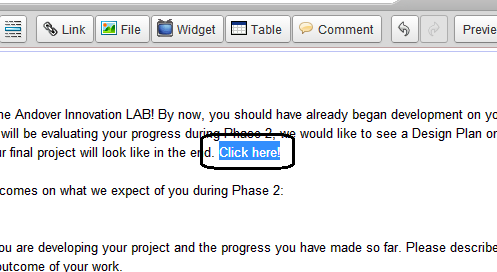
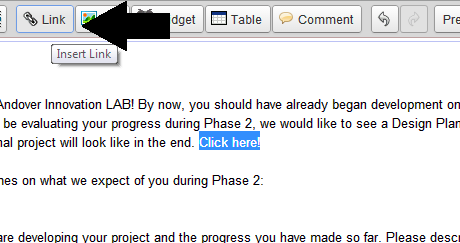
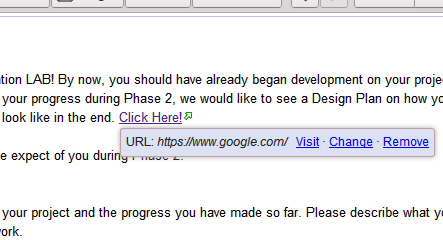
Creating Links: Creating links out of text on your Wiki is simple! All you have to do is copy the url you wish to link, highlight your text on your Wiki page, and click on the “Link” button. Once you are in the link window, you can choose what kind of link you want to use. “Page or File” creates a link to a file you uploaded onto your Wiki storage, Web Address creates a link to a webpage, and Email address creates links to emails.

Step 1: Edit Tab
Click on the edit tab on the top right corner of the page you wish to add a link to. This turns the page into edit mode, which allows you to change any content the page contains.

Step 2: Highlight your text you wish to link
Highlight over the text you wish to turn into a link. Also ensure you copy the url of the link you want to use.


Step 3: Link tab 
With your text highlighted, select the Link tab on your toolbar. This will open a window.


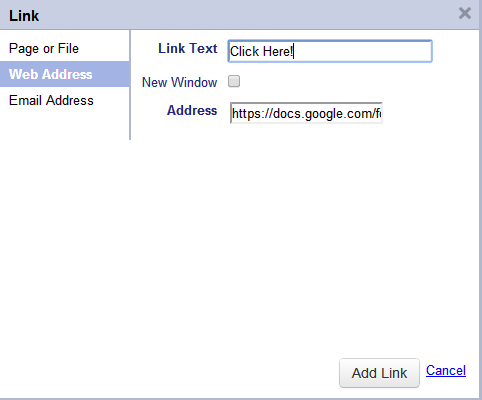
Step 4: Select your type of Link
Select your type of link, between a file, website, or email address, and paste your desired url inside of the Address bar. Your highlighted text should appear in the Link Text bar as shown below.


Step 5: Test your link
Now that your link appear on your page, click on it and select visit. Your link should now work properly.


You should now have clickable links on your page! Linking an email or file from your storage works the same way as you would link your address.

Importing Content & Images

Using the tool bar under edit mode is a very efficient way of managing your content. The Widget tool allows you to import music, videos, and other kinds of media files to your page, and other tools like the spell checker, File uploader, and font editors will prove to be very helpful when structuring your content.

Font Editor Tools

Like most user-interfaces on any major application you use such as Google Forms or Microsoft Office, the

tool bar on Wikispaces has all of the essential editing tools needed to manage your content the way you see fit.

Links, Formatting & Importing

While the tool allows you to format your text, you can also create links, load images, upload videos, and many other things using these features of the toolbar. Remember to always press Save on the right when you are finished working on something!

Navigation With Editing

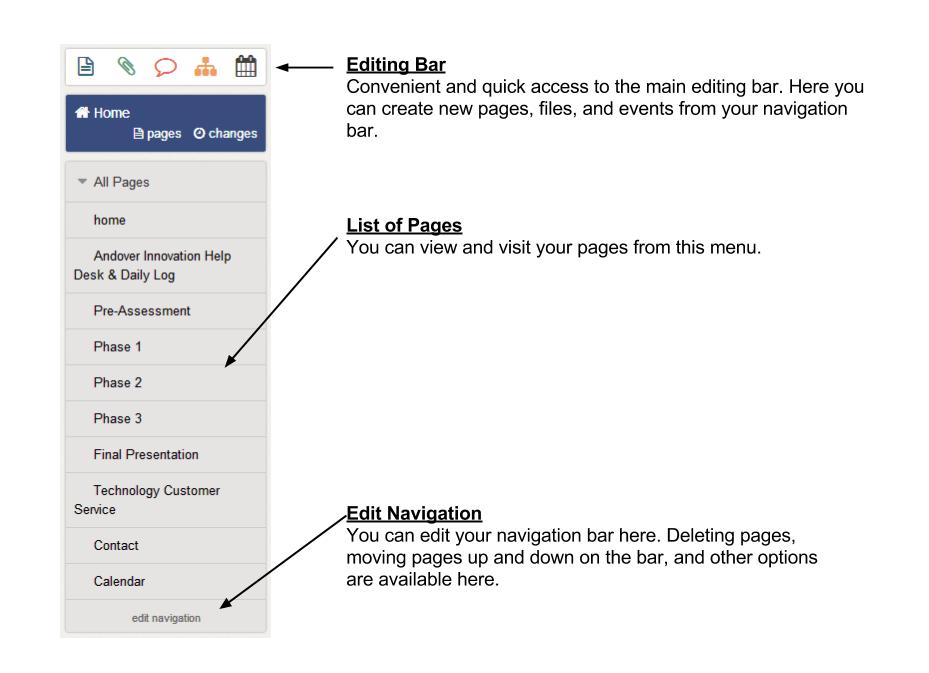
You can navigate and edit your navigation menu at your own leisure using the edit navigation tool, and the Pages and Changes buttons allow you to view edits, files, and all of the pages on your Wiki.

Calendar

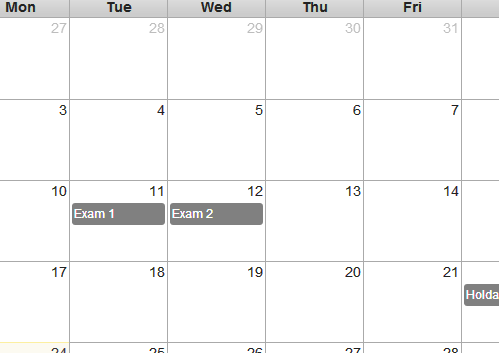
You can view your calendar under your Events page. When adding a new event, it will automatically show up on your Calendar, which can be edited at any time.


You can also import your Google Calendar into your Wiki if you wish.


1) First, you want to open the Google Calendar you wish to import. Under “My Calendar” you need to select the Calendar you wish, and go to “Calendar Settings.”
2) Once you are on the Calendar Settings page, Go to the Embed This Calendar tab and copy the text that it provides to you.
3) Go to a page on your Wiki, and when you are in Edit mode, click on the Widget button. A window will open and at the bottom of the navigation menu, there will be a tabbed named “Other HTML.” Go there, and paste the code you copied from your Google Calendar. The Calendar should now appear on your Wiki and will be updated every time you edit your Google Calendar.

Useful Tutorials & Resources On Wikispaces:
YouTube: http://www.youtube.com/watch?v=A_WdD-lIewg
Educational Software: http://educationalsoftware.wikispaces.com/Wikispaces+Tutorial
Wiki Tours: http://www.wikispaces.com/content/wiki-tour

Wednesday, February 12, 2014

Why We Love Chromebooks / Zachary Griffin


The Advantages of a Google Chromebook
Google is one of the biggest multinational corporations in the world, and with its goal of trying to create seamless and universal devices and programs for any type of audience, such as the Google Apps, it only seems fitting that they would create a Chrome-based laptop that takes full advantage of its App interface and cloud-based service.

Cloud-Based Interface
As is the direction Google are going with the Google Docs, the Chromebooks take advantage of the Chrome OS device. An internet-based storage system that stores anything from online video streaming to sharing emails via a social network, is all implemented seamlessly on the Chromebooks.

Despite the several advantages to an always online storage system, this could have its own negative outcome for people who are more protective of their content and don’t feel comfortable pushing their content on an always-online storage space.

Full Advantage of the Google Docs
A more cloud-based online environment is coming, and with big manufacturers like Sony, Apple, and Microsoft utilizing a streamed-based service, Google Docs will become even more efficient in creating and sharing documents in the future. Among the various things that the Google Docs allow you to do, you can also take advantage of its exclusive apps that can used for education such as Quicknote or Scratchpad.

Apps that Instructional Staff can take advantage of using Chromebooks:
  • Google Books
  • SlideRocket
  • Google Docs
  • Google Dictionary
  • Alarm Clock App
  • Zoho Projects

Affordability of a Chromebook versus any other standard laptop
One of the best parts of obtaining a Chromebook is how cheap they are. The Acer Chromebook C720-2848 laptop with an 11.6-inch screen is only $200. Compared to similar laptops from other manufacturers such as a Windows 8.1 Dell, which sells the Asus 13.3-inch laptop at $400 with a lower end Intel Duo processor, the Chromebook, relying more heavily on its streaming service rather than its tech, would not only provide better value, but you wouldn't need to worry about getting hardware upgrades on an always clouded device.

How we, at the Andover Innovation Lab use Google Docs
Google Forms 
We use Google forms to create various spreadsheets and forms that assist us in keeping track of our students progress regardless of where we are and what device we are using, as these are the advantages of a streamed catalog! One of the examples that we use is the Student Attendance sheet which was created using Google Forms.


Google Calendar
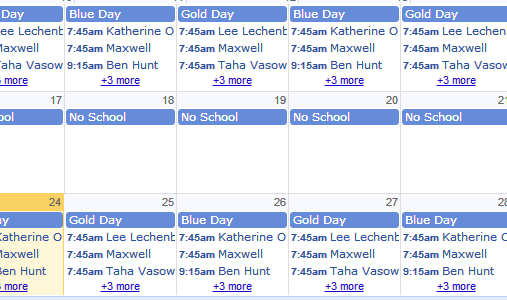
Keeping track of our students attendance online for the Help Desk is not only beneficial for us, but also for the students. Using Google Calendar, we posted the Help Desk’s students names and the times and days they are scheduled to attend class on the Calendar, which is set to public so both teachers and students can view it. Using the embed tool the Google Calendar provides, we can also post that Calendar on Wiki Spaces and Blogger so our students can always see it as a useful reminder as to when they are expected to attend our class.


Blogger
Among the many resources the Google Apps provide us, the Google Blogger is among our most used app at the Help Desk. Blogging is an essential way of keeping our viewers and students up to date with the current events of the Help Desk. Students are also asked to post their own blogs regarding their progress on their projects on the Help Desk blogger.


       The Google Apps are essential to the Andover Innovation Lab’s progress, and using the Chromebook interface to take even more advantage of these features would even further its value to both the staff and the students. Chromebooks are affordable, durable, and up-to-date with the newest cloud-based technology, and with Google pushing towards becoming an even more universal technology based company than it already is, Chromebooks will surely prove to be the way to go for education in the near future.

Useful Links for further information on Chromebooks:
https://support.google.com/chromebook/answer/1056325?hl=en
https://sites.google.com/site/chromeoswikisite/home/choosing-a-chromebook
https://sites.google.com/site/chromebookclassroominthecloud/classroom-resources

Andover Innovation Lab Links:
http://andoverhighschoolstudenthelpdesk.blogspot.com/
http://andoverinnovationlabhelpdesk.wikispaces.com/

Monday, February 10, 2014

Eight Suggestions for Formative Projects / Zachary Griffin

     Now that we are on week 3 of the Andover Help Desk with our new students this semester, they are now preparing to enter Phase 2 of their progress. Phase 2 is where the students will be expected to have a design plan laid out, which will show us how they plan on getting what done and when, and several samples of their work from this point. Below is a list of eight suggestions on what they can be working on for their Phase 2 part of their project if it helps them:

Drafts: Drafts are a vital part of any project. Anything that a student has worked on that led them to where they are now is the essence how their project has progressed. While it is not required, a student at the Help Desk could gain a lot of support by looking at some of the resources they developed during their progress on their project.

Info Graphics: These will allow our students to create simple and informative graphics explaining what their outline of their projects are, as well as outlining the various different steps of Phase 2  A convenient and free site to do this is "Easelly.com".

Script and Storyboard: Mainly useful for students working on video projects, creating a short and informative video that explains your progress up to this point is a very efficient way to both show your work and explain where you progress is up to this point.

Videos: Creating video tutorials that showcase your work up to this point is a great way of showcasing your work up to this point. Often times, viewers may not understand what the students project is about and how it works, and creating a tutorial or lecture video on what it is the student is working on is a great way to explain to his/her viewers what they plan to accomplish at the Help Desk.

Tutorials: While creating a video is one of the more efficient ways of showing off a tutorial, creating graphics, charts or other types of forms can also prove to be a useful approach on teaching others about your work. By using Google Forms, a student could create a list of things to know about their project as well as some simple tutorials steps that will help viewers understand more about what they are writing about.

Content Outline: Students who are creating a website or online app may find this useful. By creating a simple form that lists all of your content alongside a sketch of how your project will look with it can help the students understand how they plan on putting forward their content. You can create a form using the Google Docs.

Blogs: While we are always putting out blogs from the students progress every two weeks at the Help Desk, some students may find it useful to create blogs as their way of explaining their progress. Writing up a simple doc telling us where they are and what they plan on doing will help them in many ways.

Location Map: Location maps are similar to info graphics in that they allow for the students to create an image showcasing what their goals are for their project. However, a location map acts more akin to a hierarchy chart which illustrates where and when a students plans on going forward with each part of a project.


While none of these suggestions are required by any of our students for phase 2, it will still prove to be useful if they are looking for an efficient way to present their work and progress up to this point.

Here are a few links to a few valuable sites that can assist students in processing their information:
http://www.easel.ly/ (Easelly is a useful site for trying to create info graphics.)

docs.google.com/ (Create forms using Google Docs.)

http://www.fraps.com/ (A free to use program that allows you to record your PC and create a video)

Sara Adams Andover Innovation Lab Project: Cupcake Website

My name is Sara Adam and I am currently a senior in the Andover Help Desk/Innovation Lab. For my independent project, I will be creating a website for Beachside Bakers, my cupcake company. By the end of this semester, I hope to have a website up and running, where customers can order cupcakes online, as well
as learn about the business. Also, I hope to create a game where people can go on and design their own cupcake, and submit their designs. Each month, we will pick one winner who will win a free half dozen cupcakes with their new design on them.

  So far, I have begun to design a new logo. I have also been planning out the layout of the website and what pages I will have on the site.  The color scheme will be different shades of turquoise, to go along with the beach theme of the company. Although I have not begun actually creating the website yet, I am almost done planning and hope to begin with that soon. Overall, so far I have had a great experience with the Help Desk!

Saturday, February 8, 2014

Crispins Wendells Andover Innovation Lab Project: Learning Java

My name is Crispin Wendell, and I'm a freshman.  I've been working at the help desk for about a week, learning Java with the goal that I might be able to design mobile apps.  I haven't helped any teachers yet, but
I have a good understanding of the way these old computers work from playing around with the laptop my parents let me keep in my room, which was made in around the same year.

I have been using online tutorials such as Eclipse to learn the language, mainly because the Android operating system only accepts applications written in Java.  As a simple project I hope to complete, I would like to make an Warriors Weekly app.  Basicaly, it is an app that has access to Warriors Weekly and is an altenative to following it on Twitter or having to visit the site, which can be tedious work if you are trying to search it on a smartphone.

Collin McDonnels Andover Innovation Lab Project: Creating A Website

My name is Colin; I have been working on W3 schools reading guides on HTML. I also read a guide on search engine optimization which was a PDF file from Google. I have enjoyed my time so far at the help
desk because I can work on what I want to work on and am not rushed. I am also given choices on what I want to do with my time.

I will be making a website using HTML and will then use SEO techniques to rank it. I have been planning what to do the website about and how I will implement SEO on it. I still need to plan and learn further before I am capable of completing my goal. The finished product will hopefully be done by the end of the year, which will consist of a website and SEO. 

Peter Bantas Andover Innovation Lab Project: Aircraft Model

My name is Peter Banta, a Junior working at the AHS help desk. These past couple of weeks I have been working with a program called Autodesk Maya 2011. This is a 3D modeling and animating software that I have used a couple of times over the past 3 summers. I really have enjoyed my time in the Help desk, but have yet to

go out on any technology related problems around the school. I think that that would be very informative as to what extent technology is used in our school. I know that most (if not all) rooms in the school have a projector/smart board now. So if we aren't really using those devices correctly it would seem like a waste.

The project that I would like to make with Maya would be a combination of modeling and animating. Currently, I have been working on a spaceship that I found pictures of online. It is a model from a game called Star-citizen that I thought looked really cool. Hopefully, based on the level of difficulty that it takes to complete this project, I would either do a higher difficulty model for a final project. Or, if the model I'm currently working on proves to take a good amount of time, I would make that my final project. I think it would involve both new and old skills learned to complete these projects, so it would be a great final project. Overall, the Help Desk is looking like a worthwhile investment of my time, so I look forward to all the good times to come. 

Lee Lebensbaums Andover Innovation Lab Project: Google Docs For Education

My name is Lee Lebensbaum, a sophomore, and I've been working hard (or hardly working) at the Andover Innovation Lab. We've helped one teacher thus far, with her projector trouble, and that was quite rewarding. I've been trying to figure out a way that teachers and students can utilize Google's apps, such as Google


Hangouts and Google+, to interact with students and make teaching more engaging. Instead of using Edmodo, which makes it tedious to interact with other students and teachers, Google+ has Google Hangouts, which allows for chatting with fellow students or one's teacher. The teacher can open a Google Page or a Google Community and post homework on there. Google Docs and Google Drive can be used for group projects and submitted via emailing to the teacher via Gmail or posting it on the Google Group. The possibilities of using Google for education are infinite.

This has been a short five classes, and with Taha by my side, the ninety minutes go by even quicker. On the rare occasion, Taha and I diverge from our main priority and check out some random site relating to cats and the like, but overall, we are very productive. Sometimes, I feel jealous that his project actually requires a lot of technical skill, but I feel like my project does has some significance (I'm not saying his doesn't, he's trying to reinvent how students take notes). Together, we are reinventing the way teaching and learning is done.

Ben Hunts Andover Innovation Lab Project: Creating a Website

My name is Ben Hunt. I am a junior at Andover High School, and I'm really optimistic for the opportunities I will have with this class. My initial hope was to create some sort of project which would involve computer
science and graphic design. These were two classes I took last semester that I enjoyed. My goal was to create a project that would expand my knowledge in these fields and enjoy what I am doing.

I believe my plan is to create a website for a game. I hope that I can program this website as well as a game that I can put on the website. This seems like the best solution to hitting both of my fields of interest. Although I have taken similar classes, this will be a new experience for me. There will be a lot of research to be done before I begin the actual work. Despite the potential difficulties, I am very excited for this project.

Thursday, February 6, 2014

Taha Vasowallas Andover Innovation Lab Project: Aquanotes Development

My name is Taha Vasowalla and I am currently part of the Andover Innovation Lab. So far, I have been working on a project called Aquanotes that my friend and  I started a little while ago. Basically, it is a program for organizing and keeping track of notes. By making note-taking easier and more visually appealing
as well as making it accessible from the web, note-taking should become more streamlined and more efficient overall. There are many bugs in the program and new ones always pop up whenever I add a new feature so it looks like it might take a while to get a fully working prototype up and running. The deadline that I have set for a fully-functioning prototype is the end of this school year.

After the prototype is done, we plan to have beta testers find any bugs or features that we might have missed and then build on to Aquanotes as we go on.

Friday, January 24, 2014

Instructional Technology & Digital Learning Andover High School Week of January 21-24 Daniel Downs

With a shortened week the High school teachers were busy preparing for semester finals and prepping their classrooms for new students and new lessons using a variety of technology tools.


Multiple teachers have been creating Google blogger accounts which will include private access for just students and parents as well as linked web resources for increased student engagement. These blogs can be used to share video,documents,forms,surveys,photos of all types and access to these can be completely controlled and managed by the creator. I have also provided assistance with teachers just starting with Google Drive a better understanding of how they can use the cloud storage and use the sharing preferences of the documents to back up work and share more fluently with students and parents.


The continual updating of Ipad carts at the high school continued this week as Zach and I synced and updated the Ipads as well as the MacBook attached to the carts. This was beneficial for Ipads which need to some times be restored or apps need to be updated. This updating is going to assist the planned pilot of Net-Texts learning app which will enable teachers with Ipads to use Open Educational Resources(OER) to build and develop lessons from open source materials.

A cool infographic tool we have really employed at the help desk in the past week is Easel.ly(http://www.easel.ly/) . This is a great great tool for teachers as well for presenting ideas and concepts quickly with great colors. The tool also has easy to use templates and allows you to add text and symbols with ease. I have included a sample of how we have integrated them into the help desk below. Please email us if you feel you would like more info on using this tools.


At the Andover Innovation Lab and help desk we had Google Hangouts with the students to assess their project work for the semester. Eli Gukovsky and Viabhav Patel both presented. Eli had created a layout and template design for a Android Game App and Viabhav presented on the benefits of Minecraft for education. Both of these presentations can be viewed on posts on this blog. Students were required to direct the Hangout and present video artifacts and discuss their findings and experiences at the Andover Innovation Lab/Help Desk.


We are looking forward to an exciting beginning of the new semester at the help desk as we plan on adding 10 new students to the rotation. We expect to be working on some exciting new projects moving forward. Stay tuned for some exciting independant projects and student videos. As always we are assisting with the trouble shooting and integration of technology at Andover High School.

Thursday, January 23, 2014

Andover Innovation Lab-Help Desk:Updating The IPad Carts- Zach Griffin

At the Andover High School, it is always in the better interest of the faculty to ensure that students are learning about the newest features in technology to assist them in their academic goals. This includes what king of the tools and resources provide the most convenient ways of doing this. While Google Apps is great software for students to work with, the Apple iPad's provide the appropriate hardware for students to work with. No longer are the days of old Mac computers that can hardly operate a class essential, now we have modern technology students can use to keep themselves up to date with the latest tools in the world.

Often times, teachers will have difficulty operating an iPad or the apps they use for teaching their classes. It is important to keep iPad's updated and charged, and the Help Desk is always here to assist instructors in their technology needs. Each day, Dan and I will tour around the school and offer our support to teachers with their technology needs, and the iPad cart is usually the one we are summoned to work on more frequently. 

While working on the iPad carts, the first thing you must do is to ensure each iPad is plugged in. The iPad carts we use have over 24 ports that each iPad is inserted into, and when plugged in, they not only charge the iPad, but also sync it with any material our laptop is installing. As the instructors at Andover High School require all of the iPad's to be up to date with the latest apps, it is important that we ensure they are all being synced with each other. It isn't a difficult task, but it can be time consuming, and considering the teachers at Andover High have very busy schedules, the Help Desk is more than happy to take care of any issues the iPad's are running into.

Wednesday, January 22, 2014

Introducing Info Graphics to the Andover Innovation Lab Help Desk / Zachary Griffin / Easelly

    With the new influx of students the Help Desk is getting starting next semester, it is critical that we prepare with as many media tools as possible to ensure they understand the three different phases they must cover when they work on their projects. As the Andover Innovation Lab promotes consistent use of technology, having these resources available online to our students will help us reach that goal. Easelly is one of the many free tools on the web that we use, and definitely worth investing time into for anyone that needs to create a free and efficient visual theme. 

    Easelly (http://www.easel.ly/) is a info graphic design tool used for creating an image hierarchy that you can implement into any subject. For example, if I wanted to make a hierarchy about the food menu at the school cafe, I would simply drag and drop media images into the background and it's their! It's very simple to use, and does not require prior knowledge on image editing software to fully understand. Do you wish to create a chart or a bullet list for your next project? Easelly enables you to do this!

    As for my Easelly theme; I wanted to develop something that our new students could use when they need a quick and easy reference on the three different phase and final presentation outlines for their Help Desk project. Tools like Easelly and Google Docs assist us greatly in creating convenient tools for our students and since we are always encouraging them to create accounts on these various sources, it should be a major convenience for them to get a reminder on what they need to know about during this course. 

    Of course, Easelly is just one of the many major tools we use at the Andover Innovation Lab Help Desk, and it will always be one of the many tools we use as long as we stay on top of the current tend in the multimedia world and continue to use valuable online resources to our advantage. Our goal is not only to make things more simple for our students by using this software, but also to encourage them to use it themselves for their professional and personal life. I am looking forward to seeing how our students will implement these resources available to them on the web, and hopefully they will use them beyond the Help Desk.

Friday, January 17, 2014

First Experience With Google Hangout's At The AHS Help Desk / Zachary Griffin / IT Assitant

     Of the many useful tools Google provides, Google Hangouts is an icing on the cake, as it not only allows you to video chat with your friends and co-workers, but it also doesn't even require an install! As Hangouts is a Google app, you simply plug it into your browser interface and you can chat with your friends in seconds. As with all of the other Google Apps, Hangouts is completely free, and so long as you have a Google account, you have complete and unlimited access to its features. 


    On Wednesday at the Andover Innovation Lab, I worked with both Eli and Dan on a Google Hangout, where Eli showed us his work on his app that he had developed during his year in the Help Desk. Dan and I watched as Eli presented his questionnaire game using Google tools and other online resources for the presentation. In order to make Google Hangouts feel authentic, we were each put into a different room in the Library apart form each other, so it truly felt like it was a real professional online session. Eli did an amazing job, and hopefully other students and faculty will get a chance to watch the session on YouTube. 

     Viabhav, being another long time student of the Help Desk, also presented his project on Thursday, using Google Hangout. Viabhav was assigned to show Mr. Downs, Eli, and myself how Minecraft, a popular crafting video game, can be utilized in schools and provide unique learning curves for students wanting to learn professional fields in software development. Viabhav went over all the need to know information for people getting familiar with Minecraft for the first time.

    Video online sessions are very useful in that they allow you to get to know someone without having to either call them or meet them in real life. Jobs in today's market are pushing towards a more virtual based environment, and the Google Apps enable a lot of the most convenient ways for people to do this. As the next semester rolls in with our new group of students; the Andover Innovation Lab can look forward to doing several more Google Hangouts in the future.


Learn more about Google Hangouts here:

Link to our YouTube channel: